
Banner Advertising in Affiliate
How to Create a Banner Campaign
A banner campaign is used to display graphic banners on your website via embedded HTML code.
You set the banner dimensions and types in the ad space, depending on where you want to place them on the website.
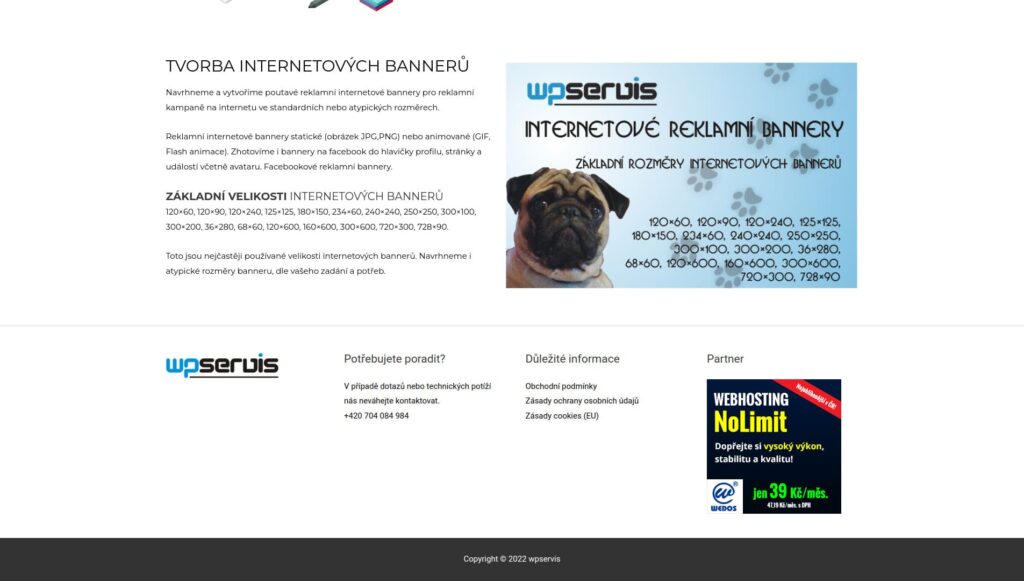
More Banner Dimensions
Works on Both Web and Mobile

Step-by-Step Process
- Log in to the administration at partner.wedos.as/login
- In the left menu, open Ad Spaces
- In the top right, click on + Space
- Select the ad categories and banner dimensions, save
- Insert the Generated HTML Code into Your Website unchanged
What It Looks Like in the Administration
Tip – if you use an editor that „cleans up“ HTML, it’s better to place the code somewhere it isn’t formatted (an HTML block, template, or snippet).
Instructional Video
The video will show you the entire process – creating the ad space, choosing dimensions, and inserting the HTML code into the website.
Most Used Banner Formats
It’s not about being the „prettiest,“ but about practical dimensions that prove themselves over the long term.
Choose based on where you’ll actually place the banner on the website.

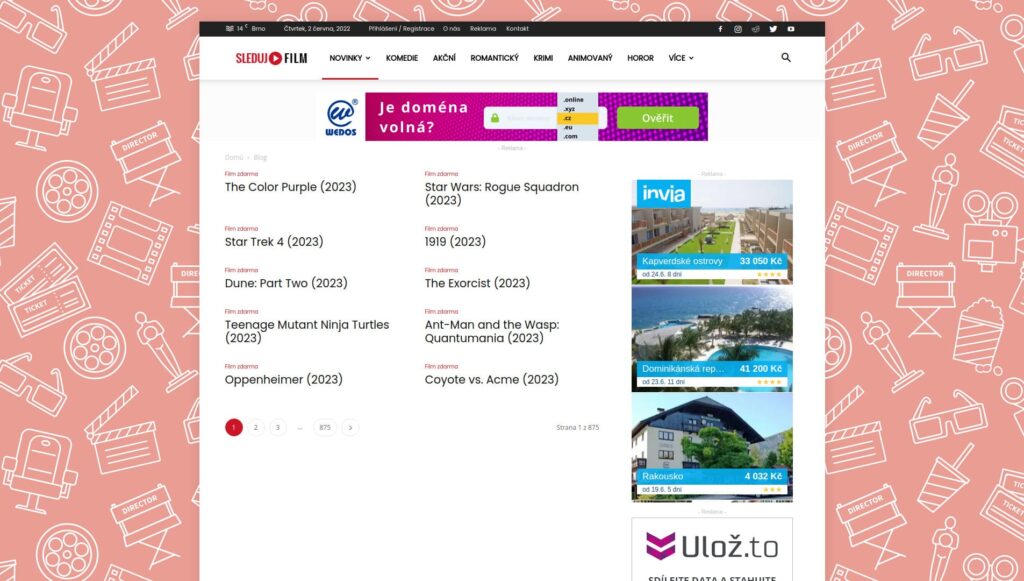
Leaderboard (728×90)
Typically at the top of the page – a highly visible spot, good for CTR.

Square (250×250)
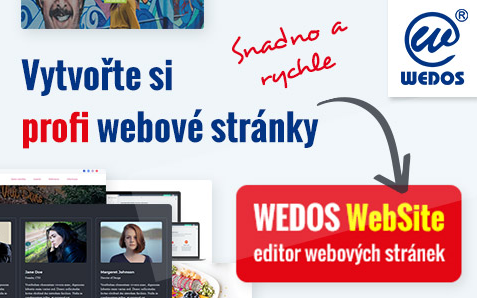
Smaller, universal – sidebar, footer, content gaps. Also works on mobile.

Large Mobile Banner (320×100)
Often one of the best-performing formats for mobile – the exact width of the phone.

Changes to ad space settings do not take effect immediately. After making changes, expect a delay of approximately 5 – 10 minutes. If you change something in the administration or on the website, give it a moment.
When the Banner Doesn’t Display
Most often the problem is that the space is inactive, no ad category is selected, or the editor modifies the HTML code when it’s inserted.
Another classic – ad blocking (AdBlock) or disabled JavaScript.
If you want to resolve it quickly, write to us at: affiliate@wedos.com.